
Experience virtual networking
Deploy a SONiC GNS3
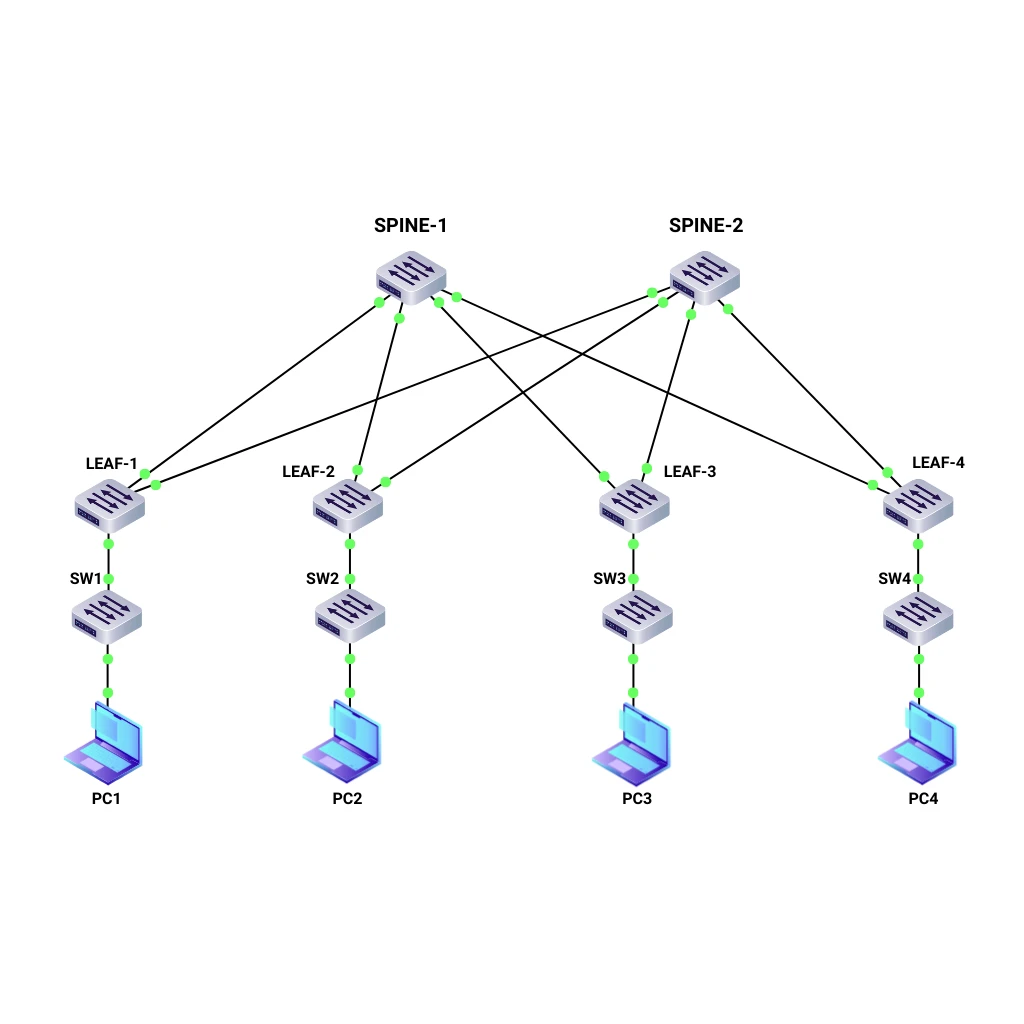
Datacenter Lab
Build, experiment, and simulate a virtual datacenter architecture
Test SONiC Networks in Minutes
Imagine being able to build, test, and explore SONiC networks without investing in expensive hardware or worrying about breaking things. That’s exactly what you get with GNS3 — your gateway into the world of virtual networking. With our pre-configured virtual machine, everything is ready for you from the start. No complex installations. No extra setup. Just launch the VM and begin experimenting.
Enterprise SONiC Linux Distribution by Broadcom
Enterprise SONiC is a commercially supported, advanced version of open-source SONiC, designed for enterprises, cloud environments, and large data centers. It provides high performance, flexibility, and seamless integration across platforms.
With greater scalability, simpler management, and enhanced reliability, it’s ideal for modern networking. Available in packages such as Cloud Base, Cloud Advanced, Enterprise Base, Enterprise Advanced, and Campus, it supports diverse deployments with full platform compatibility and trusted Broadcom support.
Learn more
STRESS-FREE SONiC TESTING
Test And Exercises
Basic Connectivity Test
- Verify IP connectivity between leaf and spine switches using ping.
- Ensure all devices can reach each other over the configured VXLAN.
BGP Configuration Validation
- Check the BGP neighbor relationships on all devices.
- Verify the advertised and received routes using show bgp ipv4 unicast summary and show bgp ipv4 unicast neighbors.
VXLAN Tunnel Verification
- Validate the VXLAN tunnel establishment using show vxlan tunnel.
- Check the mapping of VTEPs and ensure they are correctly configured.
EVPN Route Examination
- Inspect the EVPN routes using show evpn es-evi.
- Verify the MAC address learning across VXLAN segments.
Static Anycast Gateway (SAG) Testing
- Verify the functionality of the SAG by checking the IP and MAC address consistency across leaf switches.
- Test host mobility by moving a VM between different leaf switches and ensuring continuous connectivity.
High Availability and Failover Test
- Simulate a spine switch failure and observe the traffic rerouting.
- Test the failover scenarios for leaf switches and their impact on the overall network.
In Collaboration With





Full Virtual Datacenter in One Package
01
Ready to Go → Simple Setup
Access a fully pre-installed Virtual Datacenter Environment and begin your Enterprise SONiC Linux journey within minutes.
02
Test Advanced Network Technologies → Advanced
Jump straight into a VXLAN and EVPN-based network lab and discover the capabilities of next-generation networking.
03
Flexible for All → Proof of Concept Made Easy
Whether you’re new to SONiC or an experienced engineer, you can quickly test SONiC Linux in a virtual environment.
04
No Cost → Completely Free
Just hit download and start using the GNS3 image of Enterprise SONiC Linux Datacenter at zero cost.
GNS3 Knowledge Base
Access expert guides, troubleshooting tips, and best practices to elevate your networking skills!
Explore GNS3 guides hereWhy Test Enterprise SONiC Linux by Broadcom?
Quick Setup
With the included image file, you can get your GNS3 VM Datacenter running in just a few steps.
Comprehensive Testing
Validate your network designs before deployment and reduce the chances of unexpected problems.
All-in-One Package
Everything you need is bundled together in one package, simplifying your workflow and saving time.
Easy to Use
Just download the VM image, import it into VMware ESXi or Proxmox, and you’re ready to go. No complicated setup required.
Advanced Network Simulation
Start experimenting with advanced scenarios right away, including EVPN VXLAN, SAG, and BGP.
Cost-Effective Scalability
Leverage your existing ESXi resources to create flexible, scalable lab environments while keeping costs lower than physical setups.
Troubleshooting and FAQs Tips:
What are the minimum hardware requirements for the GNS3 VM?
At least 24 vCPU, 48GB RAM, 50GB storage. However, more resources may be needed depending on the size of your network emulations.
How do I update the GNS3 VM?
Download the latest OVA file from the website and redeploy it.
My GNS3 VM is running slowly, what can I do?
Ensure the VM has adequate resources allocated. Check for any other VMs on the ESXi server that may be consuming resources. Optimize your network topology within GNS3 to reduce load.
GNS3 VM does not start, what should I check?
Verify that the VM has sufficient resources allocated (CPU, RAM). Check the VM’s log files for any error messages.
Connection issues between GNS3 VM and GNS3 application, what should I do?
Ensure that the GNS3 VM is properly powered on and running. Verify network connectivity between your local machine and the ESXi server. Check firewall settings on both your local machine and the ESXi server.
I can’t access the interface of the GNS3 VM, what should I do?
Check the network settings of the VM. Ensure that the VM’s IP address is correctly configured and reachable from your local machine.